Why Your Social Link Previews Look Wrong (And How to Fix Them for Good)
You paste a link into a post, hit share, and the preview shows the wrong image, an old title, or no description at all. It’s frustrating—and it can hurt engagement. The good news is that most “broken” social previews have a few common causes and straightforward fixes.
In this article we’ll walk through why your social link previews look wrong and how to fix them for good, with checks for meta tags, caching, and platform-specific behavior. We’ll also point you to free tools like our link preview checker so you can verify every fix.
Reason 1: Missing or Incorrect Open Graph Tags
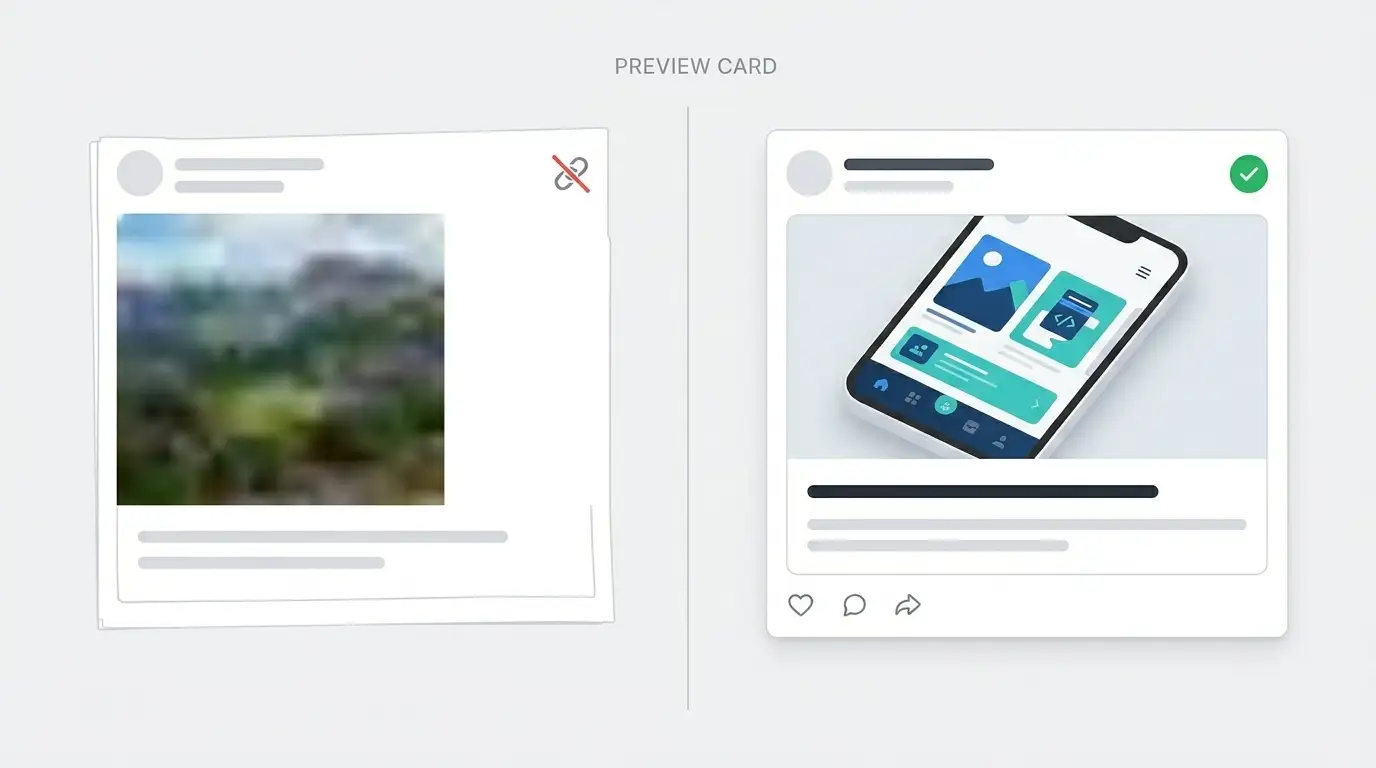
If your preview is wrong or generic, the first place to look is your page’s meta tags. Social platforms use Open Graph (and on X, Twitter Card) tags to build the preview. If og:title, og:description, or og:image are missing or wrong, the preview will be too.
Fix: Add or correct these tags in your HTML <head> or via your CMS. Use absolute URLs for og:image (e.g. https://yoursite.com/images/share.jpg). Then test with a LinkedIn preview tool or Twitter Card validator to see exactly what each platform will show. For a full rundown of required tags, read our Open Graph and social previews guide.
Reason 2: Caching on the Platform’s Side
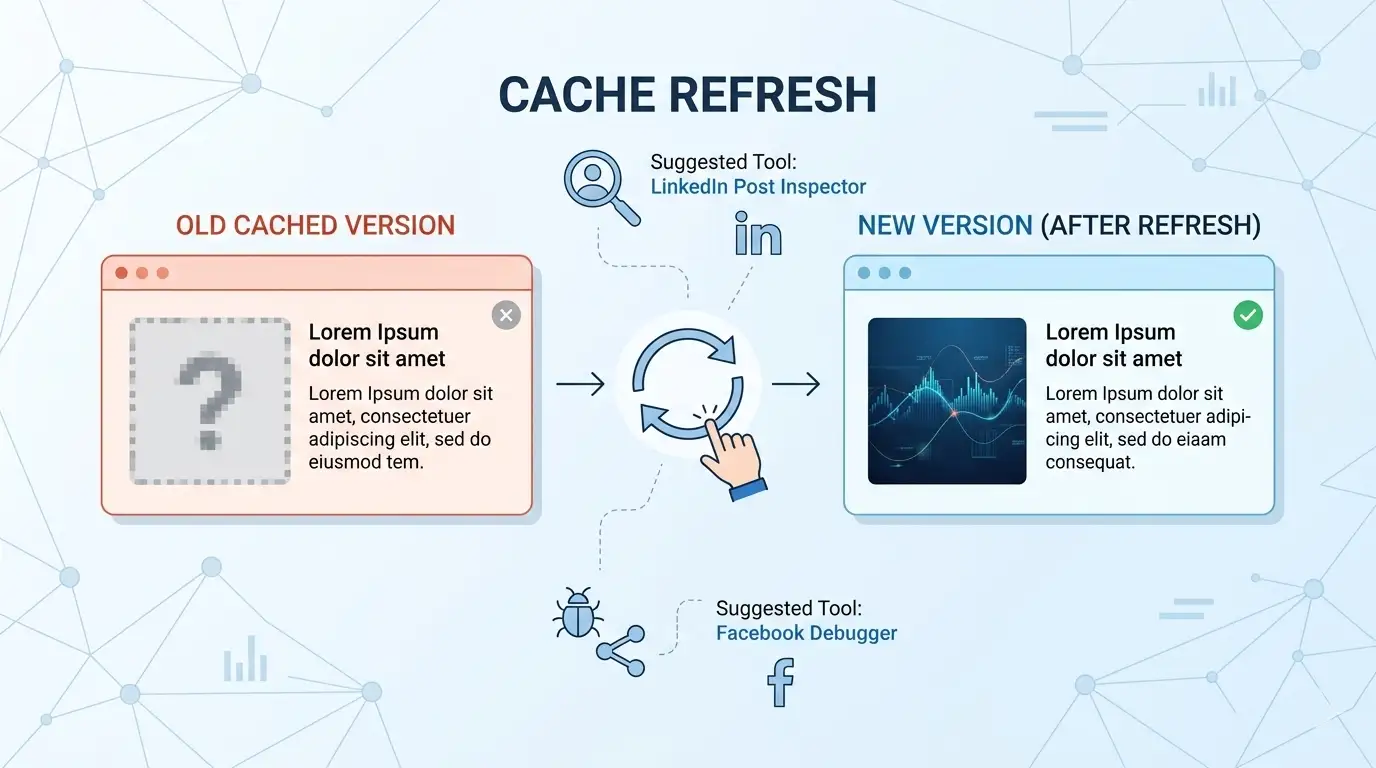
You’ve fixed your meta tags, but the old preview still appears. That’s usually caching. Facebook, LinkedIn, and X store preview data so they don’t have to fetch your page every time. Until the cache is refreshed, they’ll keep showing the old data.
Fix: Use each platform’s debugger or inspector to force a refresh. For Facebook, use the Sharing Debugger and click “Scrape Again.” For LinkedIn, use the Post Inspector. For X, the card is often updated on the next share or you can use their validator. After scraping, test again with a Facebook link preview tool to confirm.
Reason 3: Image Size, Format, or URL Issues
Sometimes the image doesn’t show at all, or it’s cropped oddly. Common causes: image URL is relative instead of absolute, image is too small, or the file is too large and times out. Many platforms recommend at least 1200×630 pixels for OG images.
Fix: Use absolute URLs for og:image, serve images in a supported format (JPEG or PNG), and keep file size reasonable (under ~1–2 MB). For exact dimensions and best practices, see our guide on best image sizes and meta tags for social sharing.
Reason 4: Wrong Page or Redirects
If the preview shows content from a different page (e.g. homepage instead of the article), the platform may be following a redirect or hitting a different URL. Some platforms also struggle with single-page apps or heavily JavaScript-rendered content if the meta tags aren’t present in the initial HTML.
Fix: Ensure your canonical URL and og:url point to the final page. Avoid redirect chains for the shared URL. If your content is client-rendered, consider server-side rendering or pre-rendering so crawlers see the correct meta tags.
Testing with our social link preview tool (which supports Instagram and all major platforms) gives you a quick way to confirm that your fixes work before you share again.
Most wrong or broken previews come down to meta tags or caching. Fix the tags, refresh the cache where needed, and your links will look right every time.